
Access your box
Reach into a running box with a shell, your IDE, the web URL, the live screen, files, and the dashboard
A box is a full computer, not just an agent REPL. Once it's running you can reach into it many ways — an interactive shell, the box's web app, its live desktop over VNC, one TUI that ties them all together, your desktop IDE, and the workspace files in Finder.
Every command below takes an optional <box>. Omit it for the project's only box, or pass a project index (1, 2, …), a name, an id prefix, or the container name. Run agentbox list to see indices and names.
NOTE
Most access commands auto-unpause a paused box and start a stopped one before connecting —
shell, code, url, screen, and open all wake the box for you. See Core
concepts for what a box actually is, and Run an agent
for the agent session specifically.
Shell
agentbox shell [box] drops you into bash -l as vscode in /workspace, inside a detachable tmux session. Ctrl+a d detaches without killing it, and closing the terminal doesn't kill it either — reattach later with agentbox shell attach [box].
A box can hold many shells (the agent is still exactly one per box): --new opens an auto-numbered shell, -n <label> opens or attaches a named one.
# interactive detachable shell (Ctrl+a d to detach)
agentbox shell mybox

# a second, named shell in the same box
agentbox shell mybox -n logs

# run a one-shot command (no tmux, machine-readable output)
agentbox shell mybox -- npm run build
A one-shot -- <cmd> is never tmux-wrapped, so stdout stays clean for scripts. See CLI commands for all flags.
TIP
Same detach chord as the agent: Ctrl+a d. See Background and
parallel for juggling many boxes.
The footer's (<state>) slot — next to the box name — shows your agentbox.yaml service status: starting N/M… while services boot in the background, service error if one crashed, ready once they're all up. (Boxes with no services show the agent's activity there instead.) It's the answer to "are my services up yet?" without leaving the session.
While attached to any box session, Ctrl+a t opens a fresh shell in the same box in a new tab — a cmux surface in the current workspace, a new tmux window, or a new iTerm2 tab, depending on your terminal. Ctrl+a k destroys the box (after a confirmation) — the same key the dashboard uses, so it never collides with Ctrl+a d (detach). For per-terminal setup — where sessions open, the full chord list, and the cmux sidebar — see the integration pages for iTerm2, tmux, and cmux.
Web app URL
agentbox url [box] opens the box's web app in your host browser. This works even when no service declares expose: — every box reserves the web port at create time, so the URL is always openable (you'll just get a connection error until something listens).
# open the box's web app in your browser
agentbox url mybox

# just print the URL (pipe into scripts)
agentbox url mybox --print
The URL form depends on the engine (OrbStack .orb.local, Docker Desktop Portless <box-name>.localhost, cloud preview HTTPS). See CLI commands for --loopback, --ttl, and other flags.
WHY
On Docker Desktop, AgentBox uses Portless so the box's web app gets the same <box-name>.localhost URL from inside the box and on the host — one origin for OAuth, CORS, and allowedDevOrigins. The full story is in Web apps and tunnels.
Live screen
agentbox screen [box] opens the box's live desktop in your browser over noVNC. This is where you watch the in-box headed browser the agent drives, or any other GUI process. The per-box VNC password is embedded in the auto-connect URL, so the browser jumps straight to the desktop.
# watch the box's desktop (in-box browser, GUI apps) in your browser
agentbox screen mybox

# print the noVNC URL instead of opening
agentbox screen mybox --print
The desktop has a window manager and an icon dock along the bottom — a Terminal button, a Browser button, and one icon per open window, so you can switch between windows or open a shell without leaving the viewer. Launching the browser puts a progress window on the desktop until it is up (on an arm64 box the first launch also has to fetch its Chromium).
The CLI isn't the only way in — the same desktop is one click away from the (VNC) link in agentbox ls, the menu-bar app's Open VNC, and the hub UI's Access card, on every provider.
This is distinct from agentbox url: url opens the web app, while screen opens the desktop. A box created with --no-vnc has no screen. The shared --loopback / --ttl flags are in CLI commands.
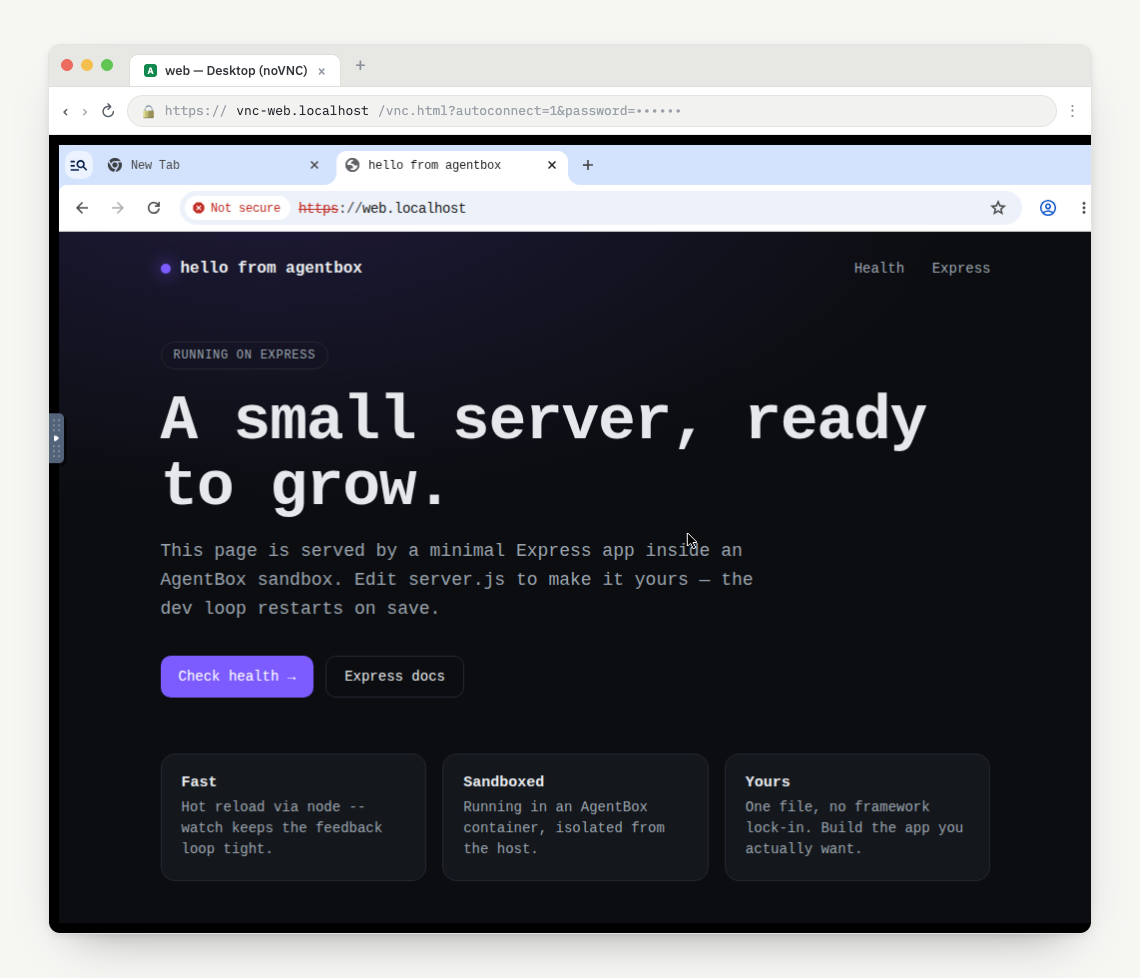
The deeper VNC and agent-browser story lives in Browser and screen.
Dashboard
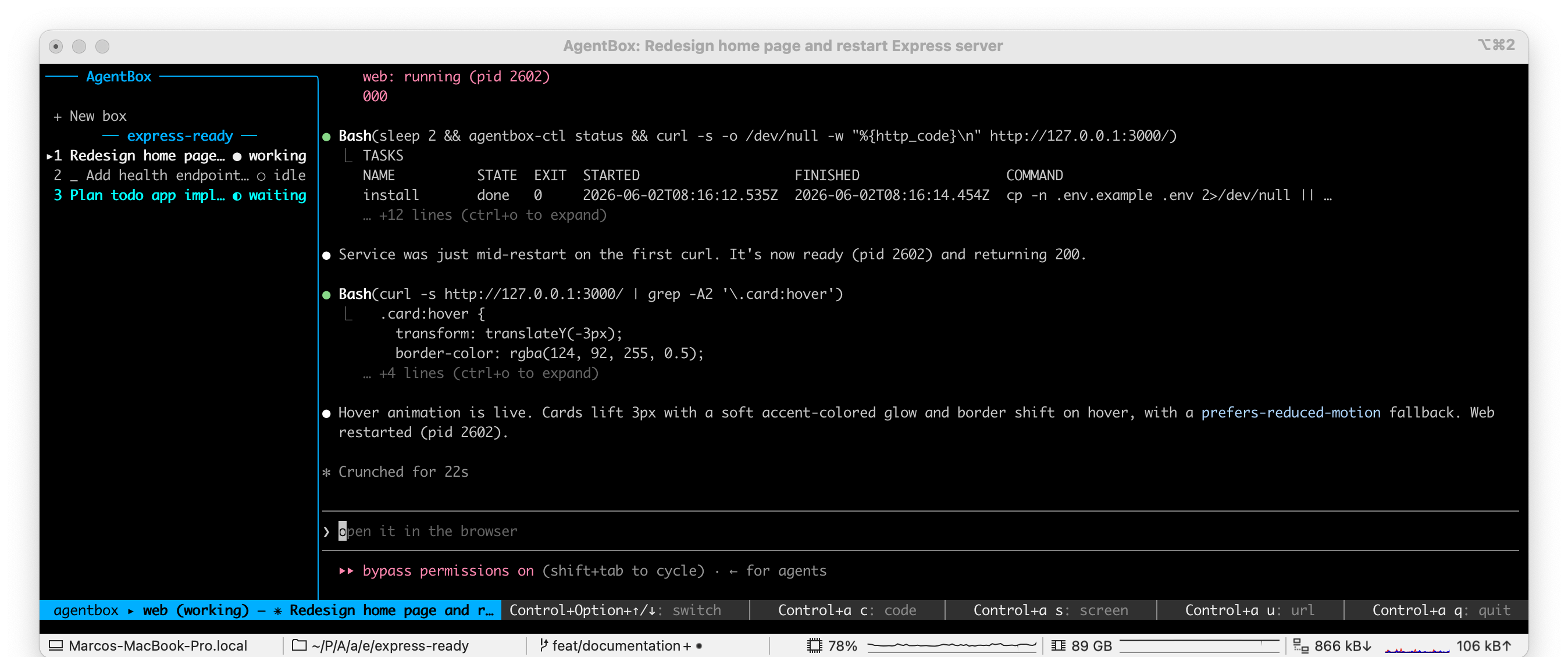
agentbox dashboard is the interactive TUI: a sidebar box list grouped by project on the left, and the selected box's live agent session on the right.
# the box list + live agent session TUI
agentbox dashboard

# scope to the current project only
agentbox dashboard --project
Switch boxes with Control+Option+↑/↓. Everything else is a Ctrl+a leader chord — press Ctrl+a to show the which-key menu in the footer, then a single key (c code, s screen, u url, p pause, and so on). These shell out to the same commands above, so they inherit the same behavior.
TIP
The dashboard is the cockpit for parallel work — see Background and parallel for running many boxes at once, and Run an agent for the agent session shown on the right. The full command reference is in the CLI page.
VS Code / Cursor
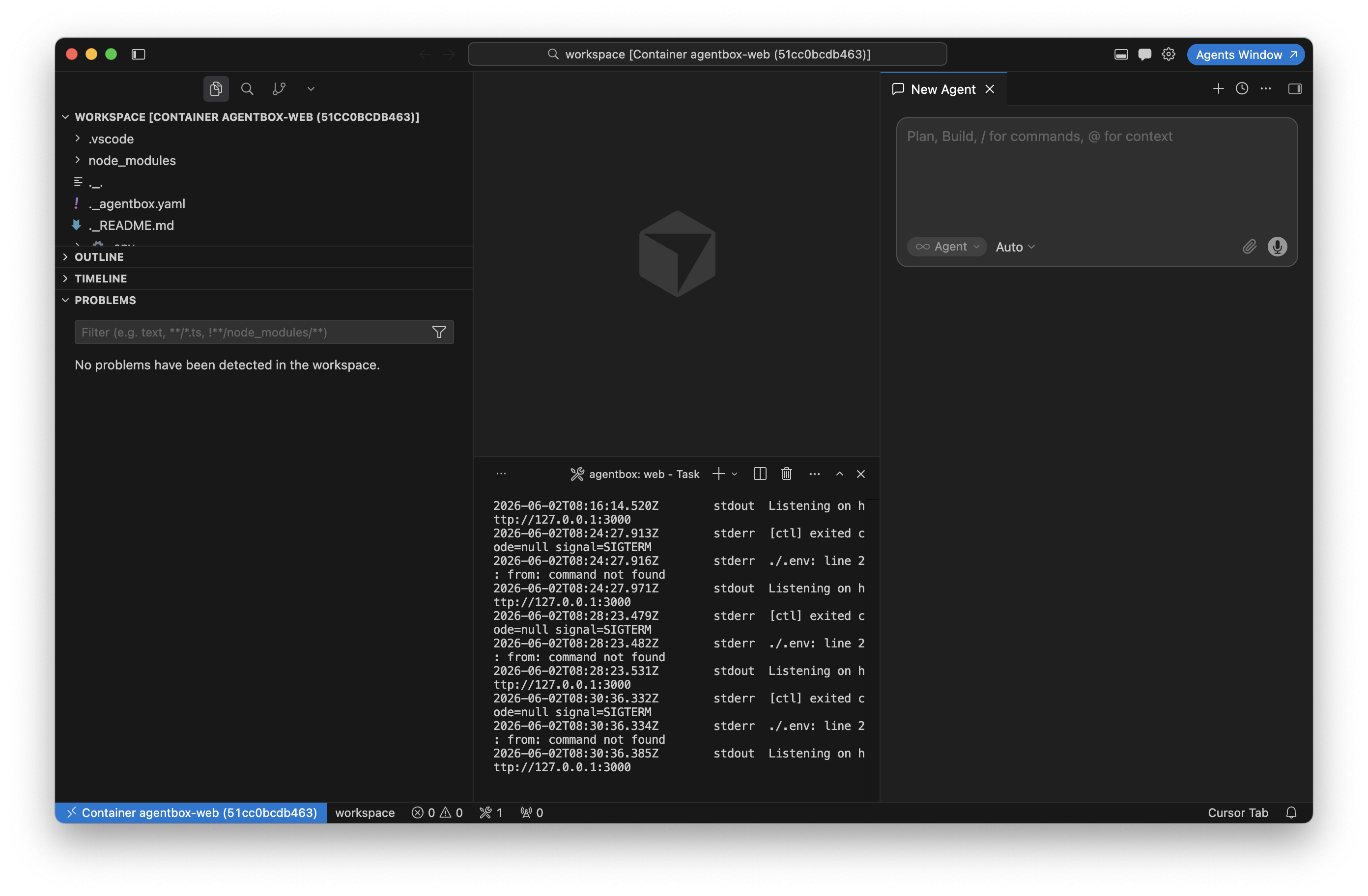
agentbox code [box] opens VS Code or Cursor Desktop attached to the box via the Dev Containers extension, with /workspace as a remote folder. It auto-detects your IDE (prefers code, falls back to cursor); force a flavor with --ide. See CLI commands for all flags.
# open the box in your IDE (auto-detects code, falls back to cursor)
agentbox code mybox

# force a flavor
agentbox code mybox --ide cursor
It also writes /workspace/.vscode/tasks.json so the IDE auto-opens terminal panels tailing each service's log, from the services and tasks you declare in agentbox.yaml.
HEADS UP
The first attach to a fresh box downloads the IDE server (~70MB, keyed to your desktop IDE version). It's a one-time cost per box; later attaches are instant.
Open files
agentbox open [box] live-mounts the box's /workspace on your host and reveals it in Finder. Every box runs a localhost-only SSH server (published on 127.0.0.1 only, key-authenticated by a per-box key), so open mounts /workspace over sshfs at ~/.agentbox/mounts/<box>/. Unlike a snapshot, edits flow both ways in real time. This needs sshfs on the host — brew install macfuse sshfs on macOS. See CLI commands for --path (print the mount path) and --unmount.
# sshfs-mount /workspace and open it in Finder
agentbox open mybox

# print the mount path without opening Finder (for editors/scripts)
agentbox open mybox --path

# tear the mount down
agentbox open mybox --unmount
Because the box exposes real SSH, you can also add it to the Claude or Codex desktop apps as an SSH connection in one step:
# add the box to Claude desktop's SSH connections (sshConfigs in ~/.claude/settings.json)
# and launch the app — pick the box from its Environment dropdown
agentbox open mybox --in claude

# writes an ~/.ssh/config alias and opens Codex's add-SSH-connection form
agentbox open mybox --in codex
Claude desktop has no add-SSH deep link, so AgentBox writes the entry into the app's own settings directly (upserted by id, removed again on agentbox destroy). From the Environment dropdown the app can start new sessions in /workspace — and list or resume the Claude sessions already recorded inside the box.
agentbox open writes a managed Host <box> block to ~/.agentbox/ssh/config (included from ~/.ssh/config), so ssh <box> also just works and lands in /workspace. The alias points at 127.0.0.1 on an ephemeral loopback port that is re-resolved on every agentbox start.
open works on any SSH-capable provider — Docker, Hetzner, and Daytona. Vercel and E2B boxes have no SSH, so open there fails with a short message pointing you at agentbox download (copy the files to your host) instead. agentbox doctor lists sshfs and macFUSE as optional checks so you can see at a glance whether the mount will work.
HEADS UP
The sshd is bound to loopback only and never reachable off-host. It's a live mount, not a checkpoint — capture durable state with checkpoints before you destroy. The per-box key under ~/.agentbox/boxes/<id>/ssh/ is wiped on destroy.
Use a box with your laptop offline
Hetzner and DigitalOcean boxes keep running after you close your laptop, so you can start a long agent run and pick it up from your phone over SSH — Terminus, Blink, or any SSH client. Create one ready for it:
# open SSH to any device + copy a git credential so the box pushes on its own
agentbox claude -n mybox --provider digitalocean --inbound open --dangerously-with-credentials

# authorize your phone's key and print the ssh line
agentbox connect mybox --add-key @~/phone.pub
--inbound open lets any device reach the box over SSH (key-only); --dangerously-with-credentials copies a git credential in so it can git push / pull without your laptop (it asks token vs SSH). On the phone, add an SSH host vscode@<box-ip> with that key, then run claude or codex as usual.
Already have a box running? Flip it live instead: agentbox inbound mybox open, then agentbox connect mybox --dangerously-git-credentials. Close it back down with agentbox inbound mybox lock when you're done. See independent boxes.
open exposes SSH to the internet
agentbox inbound open makes port 22 publicly reachable. Access stays key-only — no passwords,
and only the vscode user. Run agentbox inbound mybox lock when you no longer need it. Hetzner
and DigitalOcean only.