cmux
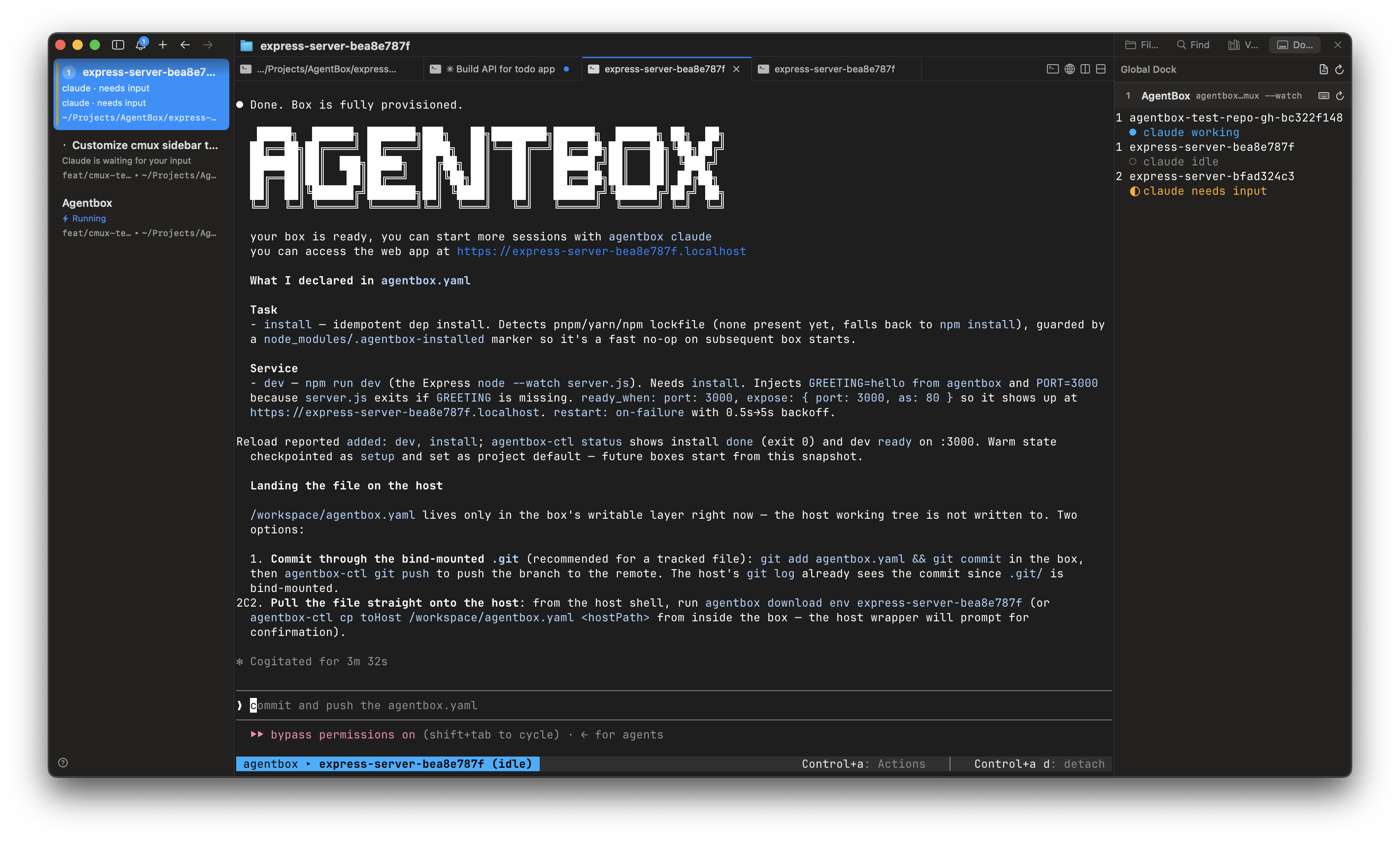
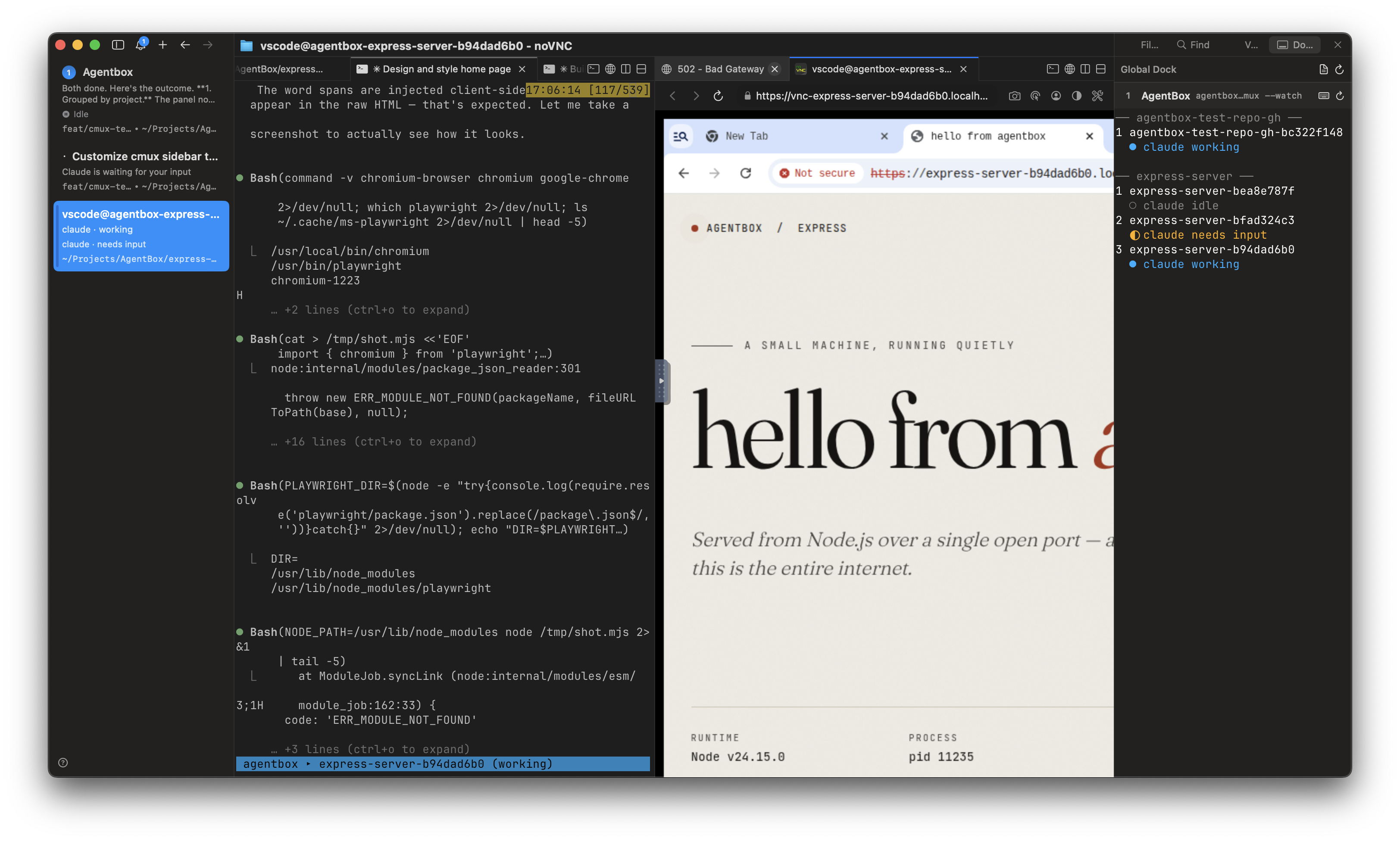
AgentBox in cmux — box state in the left sidebar, boxes as tabs in your project workspace, a shell in the box with Ctrl+a t, and the AgentBox Dock
cmux is a Ghostty-based multiplexer, and AgentBox has the deepest integration with it:
- left sidebar shows boxes and agents status
- notifications for boxes that are pending input
Ctrl+a tshortcut launch a new persistent shell inside the current box- (optonal) with
agentbox install cmuxadd a right sidebar with list of running boxes. To enable cmux -> Settings -> Beta features -> Dock
Box state in the left sidebar
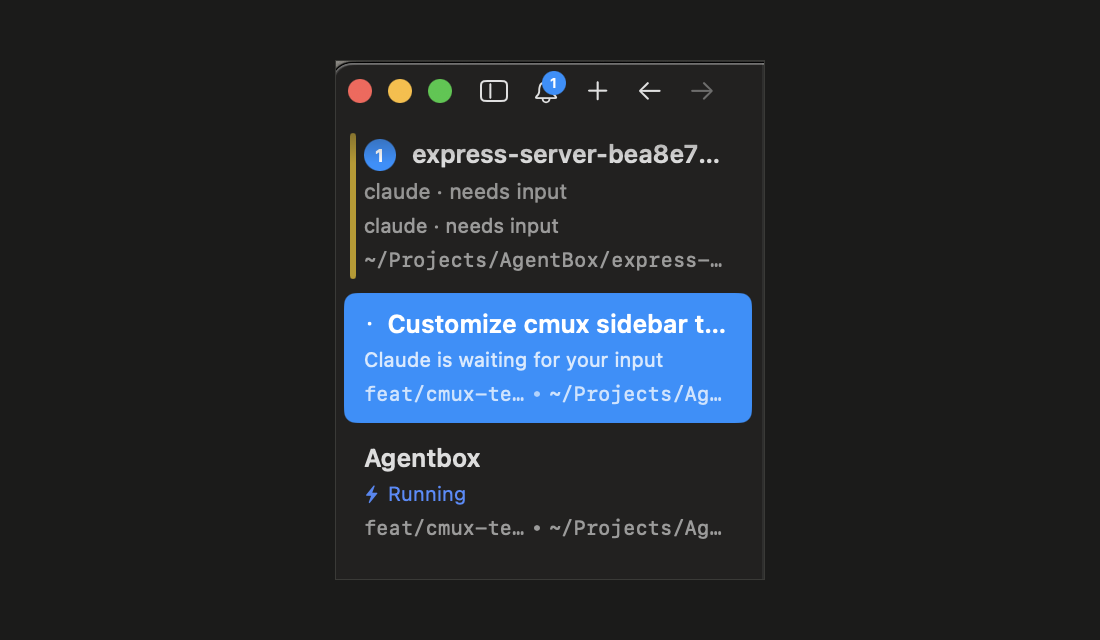
While you're attached to a box inside cmux, AgentBox reflects the agent's live activity on the box's workspace — its colour and description in the left sidebar — so you can see what every box is doing at a glance:
| Agent state | Workspace |
|---|---|
| Working / compacting | Blue · "working" |
| Asking a question / waiting | Amber · "needs input" |
| Plan ready | Amber · "plan ready" |
| Error | Red · "error" |
| Idle | tint cleared |
The workspace's original colour and description are restored when you detach. This is controlled by attach.cmuxStatus (default true); set it to false to turn it off. It's a no-op outside cmux.
WHY colour, not a status pill
cmux only renders its status pills for workspaces it recognizes as running an agent — a box runs the agent inside the container, so cmux sees a generic process and never draws the pill. What cmux always renders is the workspace colour and description, so AgentBox drives those instead.
Boxes as tabs in your project workspace
The attach.openIn config key (CLI flag --attach-in) decides where an attached session lands. Under cmux:
| Mode | What happens |
|---|---|
split (default) | New split in the current workspace |
tab | New surface — a tab in the current pane, same workspace |
window | Separate cmux workspace |
same | Inline in the current pane (no spawn) — same as --inline |
# open each box as a tab in the current project's workspace
agentbox claude mybox --attach-in tab

# make that the default everywhere
agentbox config set attach.openIn tab
When you open several boxes from one project as tabs in the same workspace, the per-workspace colour can't say which tab needs input. So AgentBox also flags the individual tab whose agent needs input via a cmux notification — a tab badge, a reorder up the sidebar, and a desktop notification — which clears when you focus that tab to answer.
A shell in the box: Ctrl+a t
While attached, Ctrl+a opens a which-key menu in the footer; press a single key to act on the box. Ctrl+a t opens a fresh, persistent shell in the same box as a new cmux surface (a tab in the current pane).
| Keys | What it does |
|---|---|
Ctrl+a c | Open the box in VS Code / Cursor |
Ctrl+a s | Open the box's live screen (noVNC) |
Ctrl+a u | Open the box's web app URL |
Ctrl+a t | Open a fresh shell in the same box — a new cmux surface |
Ctrl+a k | Destroy the box (after a confirmation) |
Ctrl+a d | Detach (tmux-backed sessions only) |
A shell-in-box button + shortcut
You can also add a tab-bar button and keyboard shortcut that opens a shell in the current project's box (and behaves normally everywhere else). Add this to ~/.config/cmux/cmux.json and run cmux reload-config:
{
  "actions": {
    "agentbox-shell": {
      "type": "command",
      "title": "Shell in box",
      // Auto-pick the project's box; fall back to a normal login shell elsewhere.
      "command": "agentbox shell || exec $SHELL -l",
      "target": "newTabInCurrentPane",
      "icon": { "type": "symbol", "name": "terminal" },
      "shortcut": "cmd+shift+t",
    },
  },
  "ui": { "surfaceTabBar": { "buttons": ["cmux.newTerminal", "agentbox-shell"] } },
}
agentbox shell with no argument auto-picks the only box in the current directory's project; outside an AgentBox project it exits non-zero and the || exec $SHELL -l fallback opens an ordinary shell. This leaves cmux's standard Cmd+T (new surface) untouched. To make it be Cmd+T, set the action's shortcut to cmd+t and add "shortcuts": { "bindings": { "newSurface": "cmd+shift+t" } } to move the built-in off it.
The AgentBox Dock (right sidebar)
cmux's custom dock pins commands to the right sidebar. agentbox install cmux adds a panel there that runs agentbox list --cmux --watch — a compact, sidebar-tuned view (two short lines per box: name, then a colored status) so the live list of all your boxes, and what each agent is doing, stays visible while you work:
# add the AgentBox panel to ~/.config/cmux/dock.json
agentbox install cmux

# preview the JSON it would write, without touching anything
agentbox install cmux --dry-run
It upserts a single agentbox control and leaves any other dock controls (lazygit, logs, …) in place; re-running just updates it. The panel lists all your boxes, grouped by project under a dashed header — a dock control runs from your home directory, not the focused workspace, so it can't scope to "the current project".
Other flags: --height <points> (panel height, default 320), --title <text> (header, default AgentBox), and --force (reset an unparseable dock.json, backed up to dock.json.bak).
Enable the Dock first
cmux's Dock is a beta feature, off by default. After running agentbox install cmux, turn it
on in cmux Settings → Beta features → Dock, then open the right sidebar and switch it to the
Dock tab. Writing dock.json alone won't make the panel appear until the beta feature is
enabled.
See Access your box for the rest of the ways to reach a box, and Configuration for the attach.openIn and attach.cmuxStatus keys.
tmux
How AgentBox uses tmux for detachable box sessions and where attached agents open — splits, windows, and the Ctrl+a chords
Herdr
AgentBox in Herdr — boxes appear as normal agents, Herdr handles needs-input natively, AgentBox approval prompts get their own highlight, and boxes open as Herdr splits/tabs/workspaces